


06 Feb Artisan Setup Guide
Contents
Installing Artisan
Download and install the latest version of Artisan from the address below.
Get the latest version of Artisan: https://github.com/artisan-roaster-scope/artisan/releases
Windows
1. Download the driver
2. Extract the files, then install
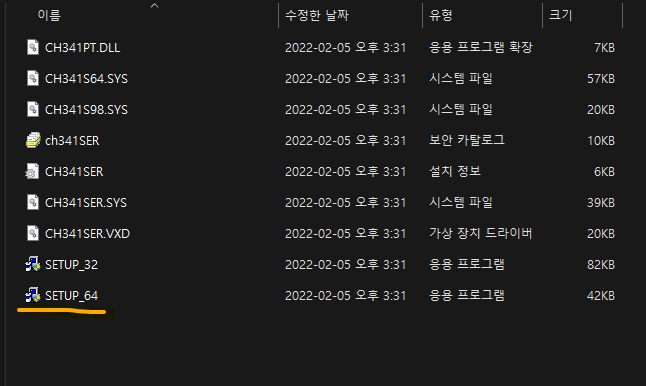
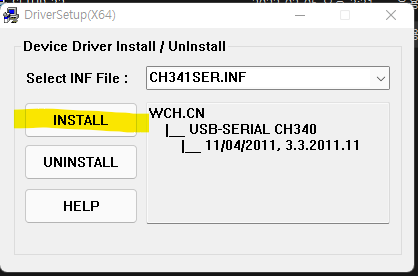
Checking the Port
- Connect the communication cable between the roaster and the computer.
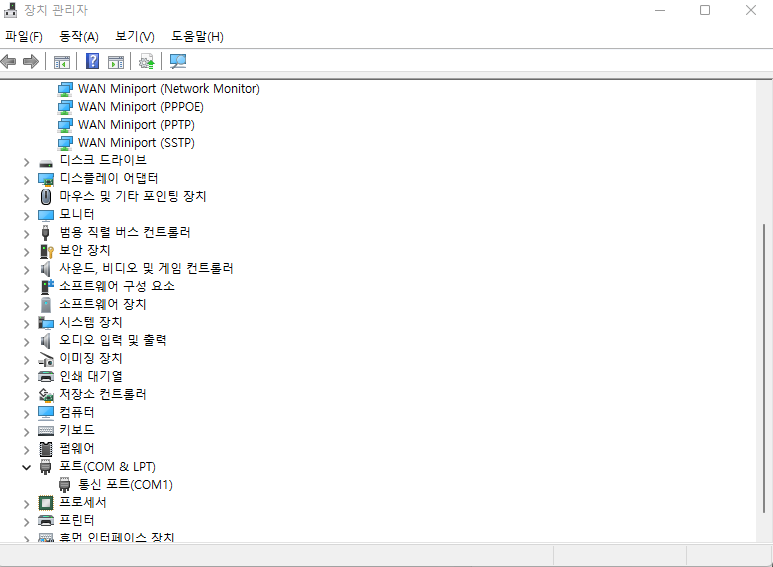
- In Windows, open Device Manager – Ports (COM & LPT) and check the port number of the CH340. (Default: COM5)
Mac
1. Download the driver
Artisan Settings
1. Temperature sensor settings
- Configure the settings as shown in the image below.
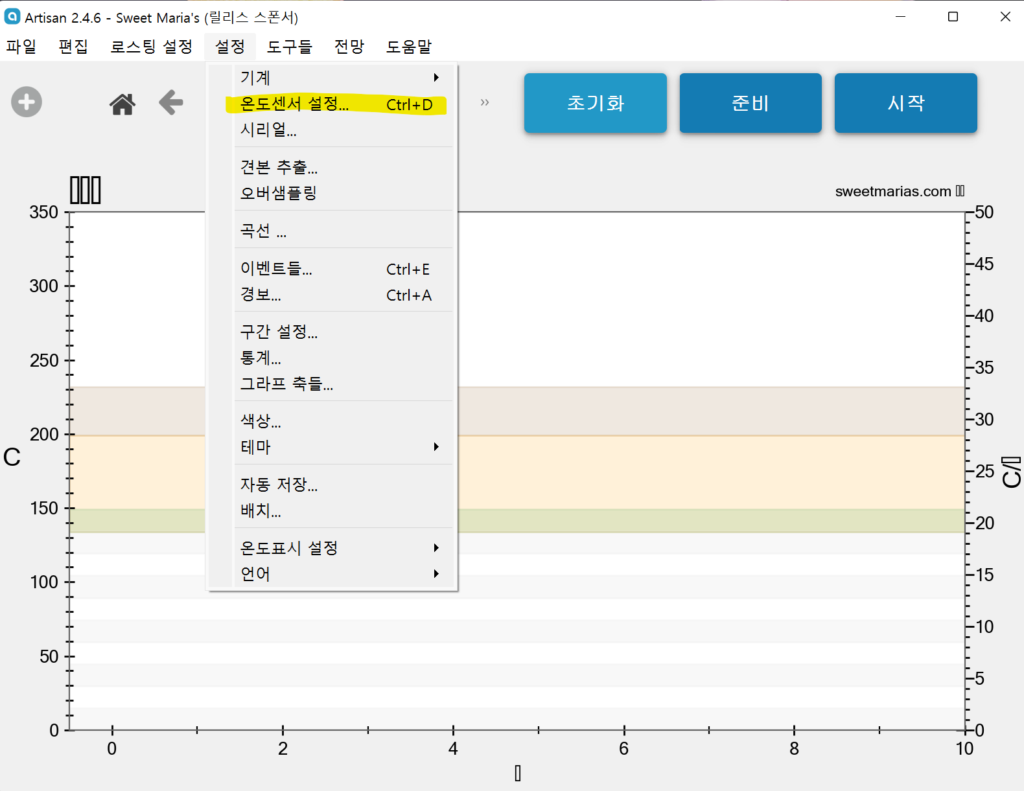
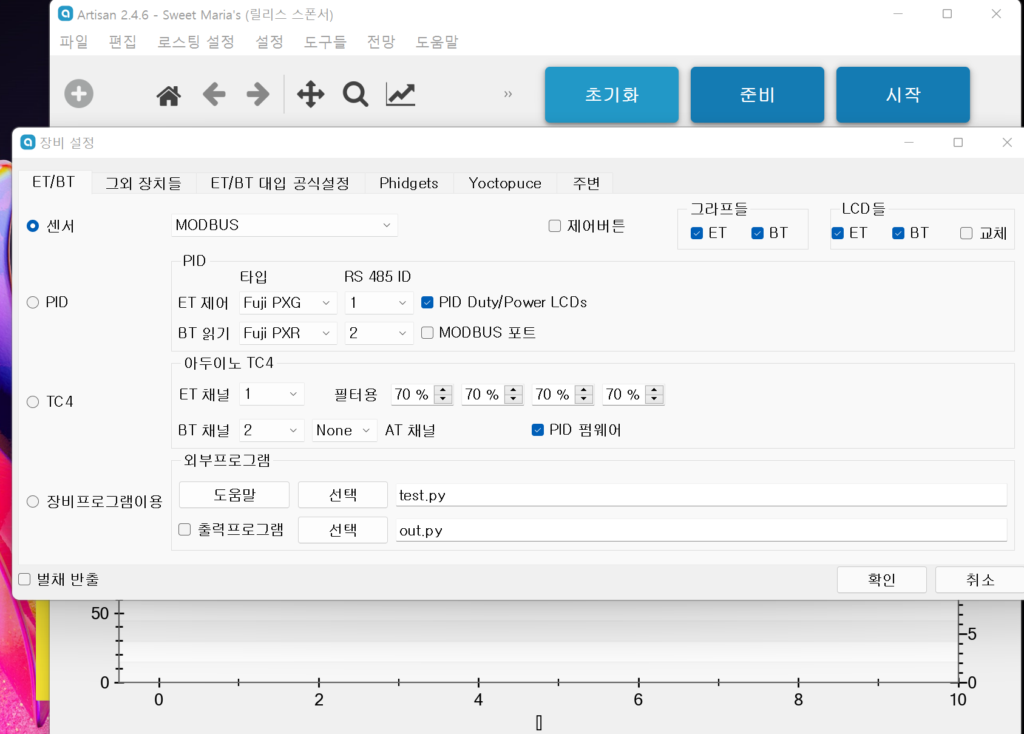
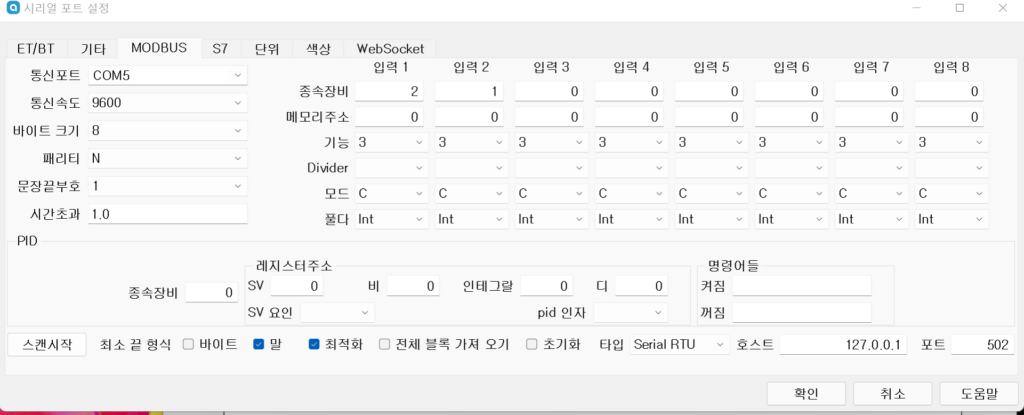
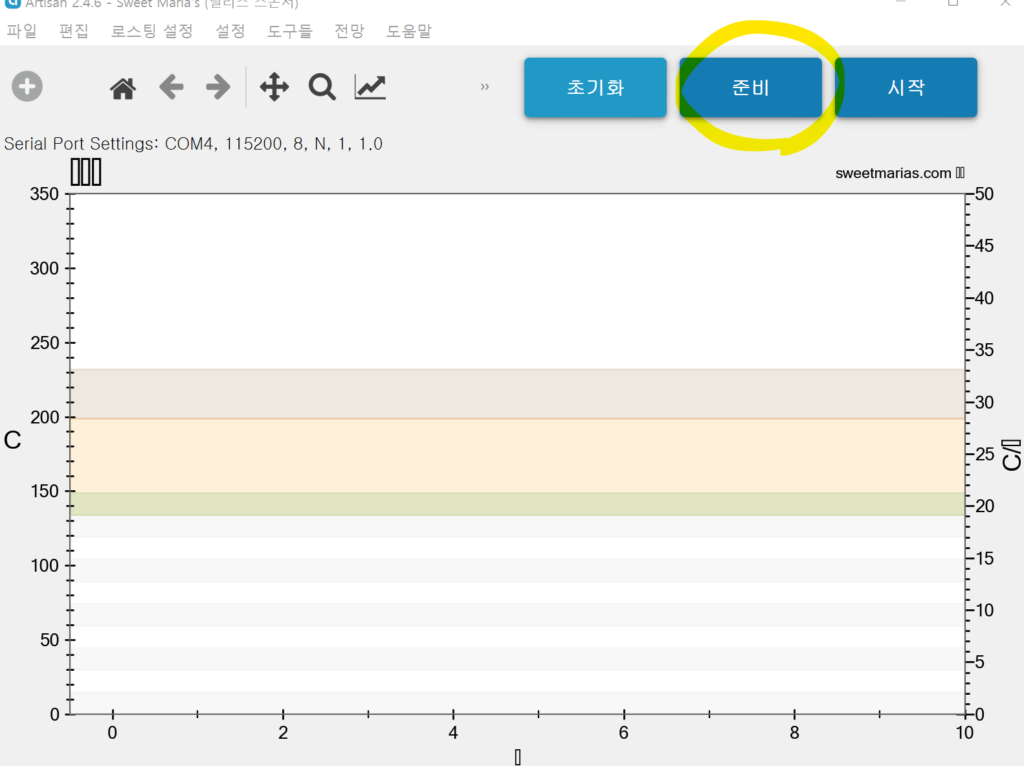
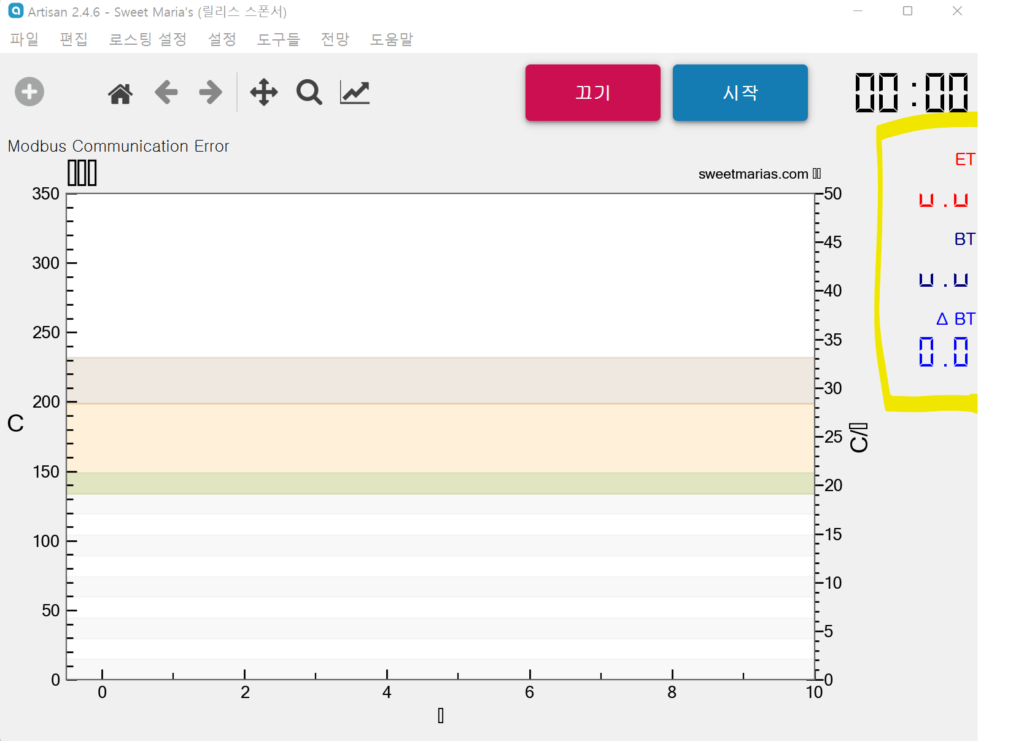
- Press ‘Ready’ to check that the temperature is displayed correctly. If it is displayed as in the image, check the settings once more.
2. Display settings
- Change the ET and BT names: Settings – Curves (Graphs) – User Interface
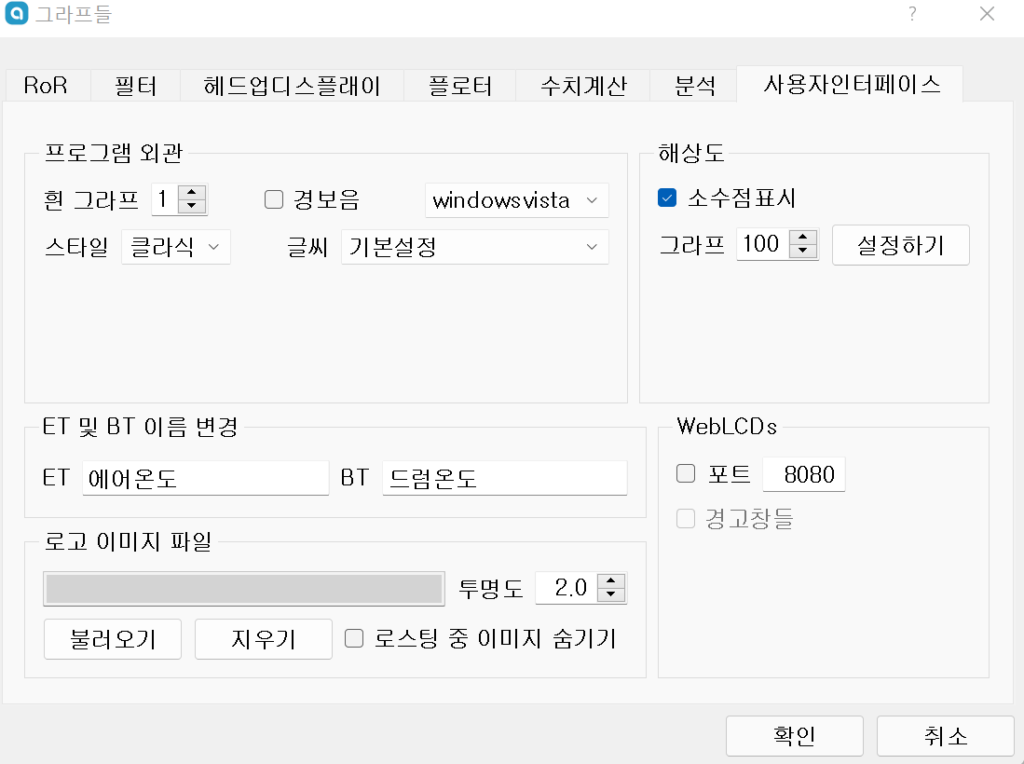
- Change the graph scale: Settings – Graph Axes – (change the maximum value)
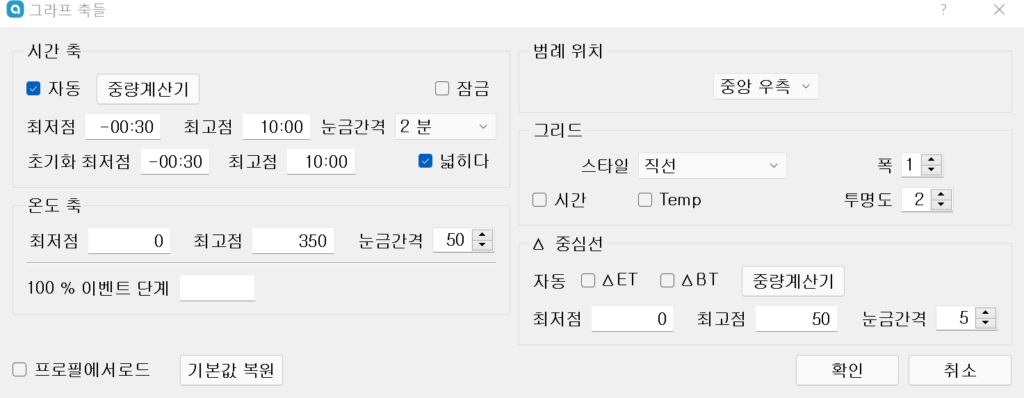
No Comments